How I Use Google Keep Everyday to Make Life Easier
This website may earn commissions from purchases made through links in this post. As an Amazon Associate, I earn from qualifying purchases.

How I use Google Keep for shopping lists, meal planning, freezer inventory, travel notes and more. Plus, free Canva headers you can download and edit for your own system.
The truth is, I’m a disorganised hot mess.
Or I would be if I didn’t overcompensate by relying heavily on digital tools to outsource my brain.
For example, I have several alarms on my phone every day to remind me to do things.
Like picking the kids up from school. I have a daily alarm to remind me to do that.
Prior to digital tools, I used lists and sticky notes – actually, I still do – but now, my second brain is mostly in the cloud.
Which is apt, really. Both brains being in the clouds, and all.
I’ve written previously about how I use Google Calendar for family organisation and Todoist for household tasks. I’m told it’s a bit extra, but I can’t function without extra.
In this article, I want to share how I use another free tool – Google Keep.
Are three digital tools and a dozen phone alarms overkill? Apparently not for me, at least. I use all three every single day. Here’s how Google Keep keeps this little red engine chugging along.
Quick note: Keep is free and works with any Google Account, but it syncs to Google’s servers, so be careful what you ‘keep’ in there. Don’t store sensitive information like passwords, banking details, or anything you don’t want leaked.
Getting Started With Google Keep
If you already have a Google account (Gmail, YouTube, Google Drive, etc), you already have Google Keep. It’s totally free to use. Here’s how.
Finding it on Desktop
Head to keep.google.com and log in with your usual Google account. Your notes will sync across every device you log into.
Downloading the mobile app
Search “Google Keep” in the app stores, and install the free app. Log in with the same Google account you use on desktop, and your notes will appear instantly.
I use this app every day. Being able to add to my shopping list while I’m standing in the pantry or have my list available while I’m standing in Colesworth is very handy.
Optional: install it as a desktop app
If you use Keep on a laptop or desktop, you can install it as a standalone app so it lives in your taskbar like any other program.
In Chrome, click the three dots in the top right, go to Cast, save, and share, then click Install page as app.
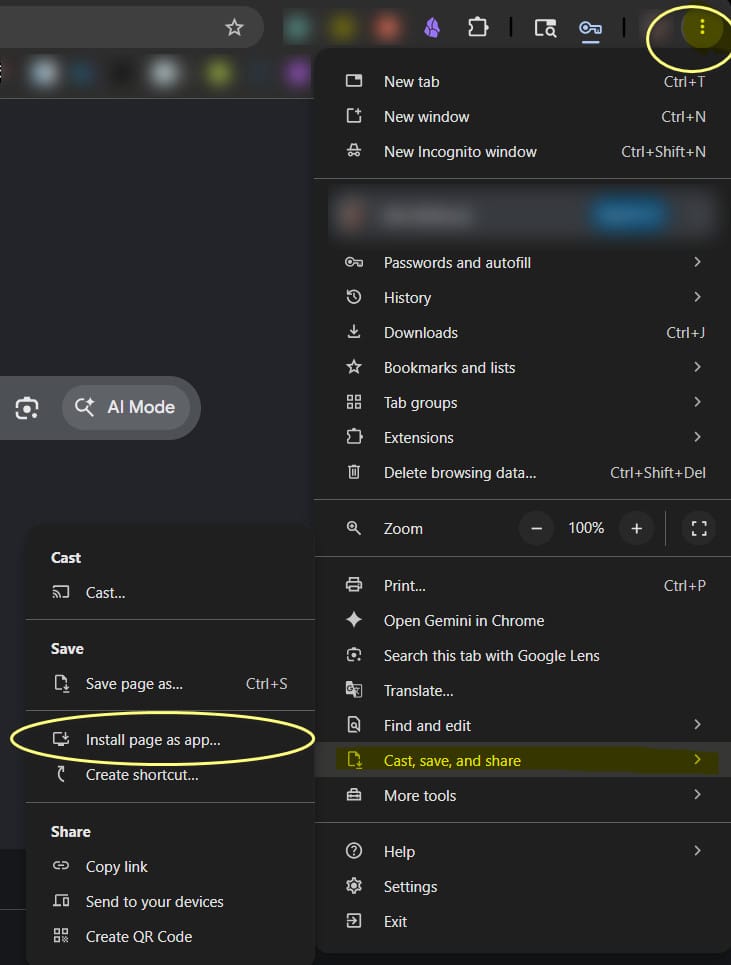
It’ll open in its own window from then on, and you can pin it to your taskbar for one-click access.
How I have mine set up
- Bookmarks bar: Keep is pinned to my browser bookmarks bar, so it’s one click away whenever I’m working
- Mobile phone home screen icon: the app sits on my phone’s home screen for easy access.
- Quick capture widget: You can add a Google Keep widget to your home screen with shortcuts for a new text note, voice note, photo, or checklist. You can create new voice-to-text notes on the go, which is very handy when you need to remember something.
The less friction between having the thought and getting it into Keep, the more useful it becomes.
My Google Keep Setup
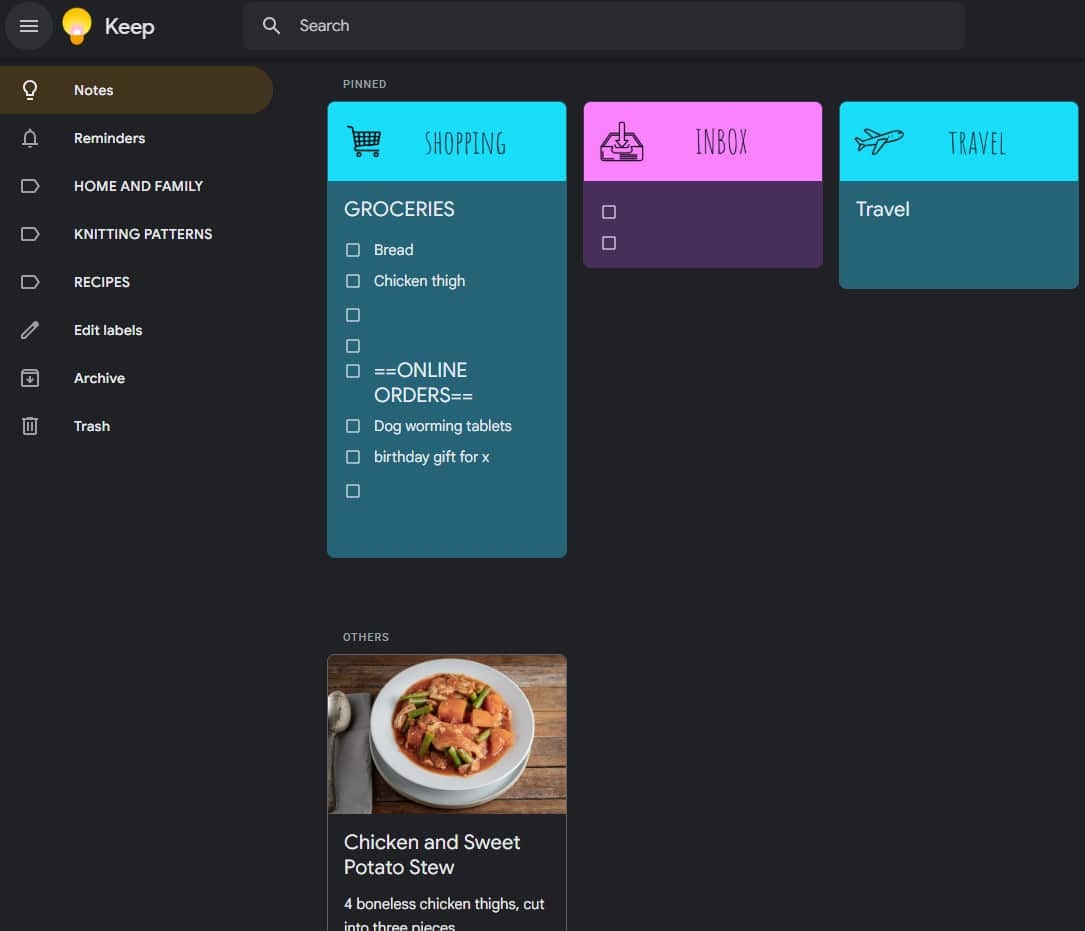
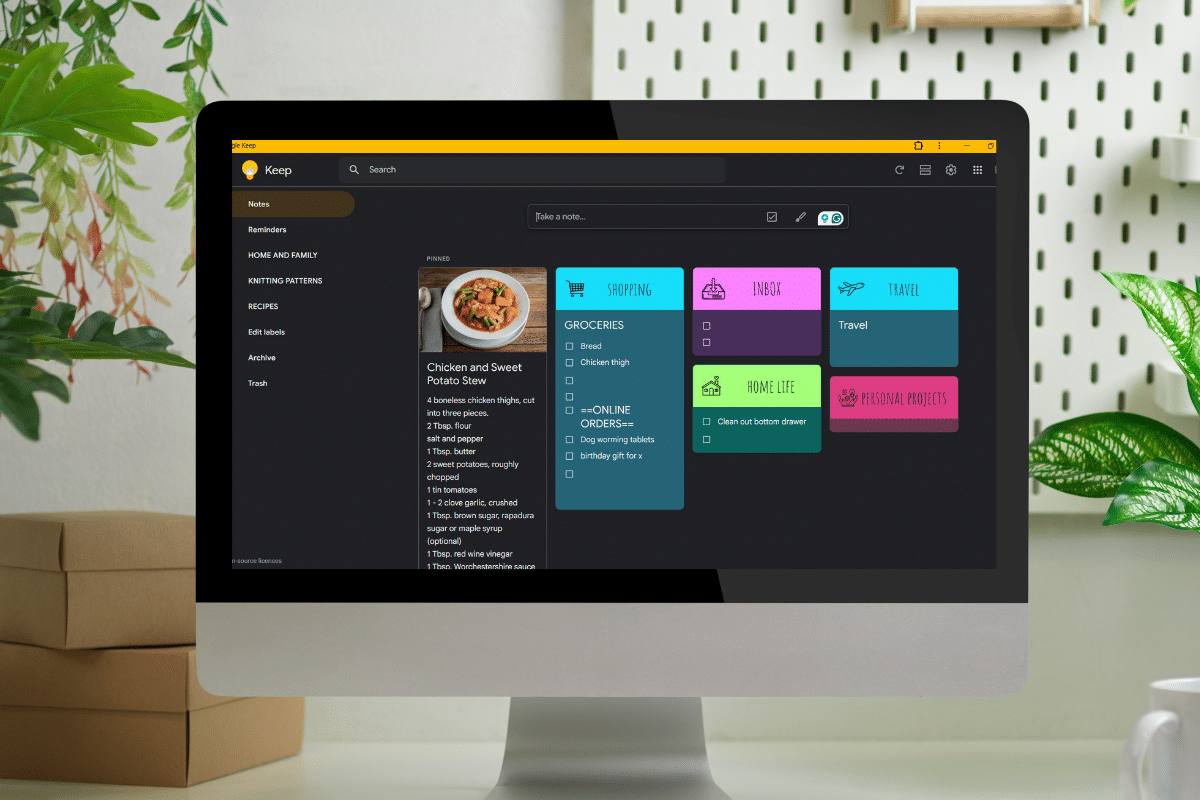
There are two zones on the Google Keep Homescreen: Pinned notes at the top, and all the other notes underneath.
I have a few key notes (like my shopping list) that I keep pinned to the top all the time.
You can pin and unpin cards/notes as you need them. For example, if you’ve stored recipes in Keep, you can pin tonight’s dinner recipe, then unpin once you’ve cooked it. This means the info you need is front and centre, not buried.
The bottom zone below is a temporary holding spot for notes on the go. All notes I capture during the day go here – recipes, links to websites I want to check out, movies I might want to watch, random thoughts – and I (ahem…eventually), sort through these notes, which I’ll explain below.
Sorting the notes is optional. But I find it useful not only to clear the mess and keep things organised, but to resurface things I forgot about.
Labels, Images, Colour, and Archiving
Google Keep is pretty basic. Compared to other note-taking apps, there’s a lot it doesn’t do.
And that’s good. It’s simple to use, which is what makes it actually useful.
Labels
To organise notes, you can give them a label, then ‘archive’ each note.
This way, the labels act like folders, and you find things by searching rather than scrolling.
The archived note will live in the label instead of the home screen, and you can unarchive it – in the case of recipes, for example – when you need to access it.
Images
You can add images to notes for easy reference. Ideas include:
- recipes – attach an image to each recipe
- gift ideas – either screenshots or photos
- maps
- plant images (to go with care instructions)
I’m sure there are dozens of ideas that I can’t think of.
You can add more than one image to a card, which can be handy.
Images as Visual Headers

For my pinned notes that I reuse over and over, I add 1 image to act as a fancy header (you can download an editable version of these below).
Colour
You can give each note a colour. This isn’t essential, but it can help visually categorise things for fast retrieval.
Archiving
I try to keep my homescreen clear (except for pinned notes). I do this by either deleting notes that are no longer needed or by labelling them and then archiving them.
This not only reduces digital clutter, but it also means things don’t slip through the cracks. I try to do this in about 5 minutes each week as part of my weekly review, but not going to lie – I don’t do it every week.
Five Use Cases – How I use Google Keep Every Day
I use Google Keep every day as a quick capture-and-retrieval space for reference information.
Here’s how.
1. The Shopping List
The shopping list is my first pinned note/card. I reuse it all the time, checking boxes off as I purchase things and clearing the checked boxes.
I also track online orders on the same note.
Notes can be shared, which means you can share this note with a partner if they are doing the shopping and vice versa.
I did have our meal plan pinned next to the shopping list and did our meal planning on the app for about three years, but the fam prefers to see it on paper stuck to the fridge, so I’ve gone back to pen and paper.
2. Recipes and Meal Planning
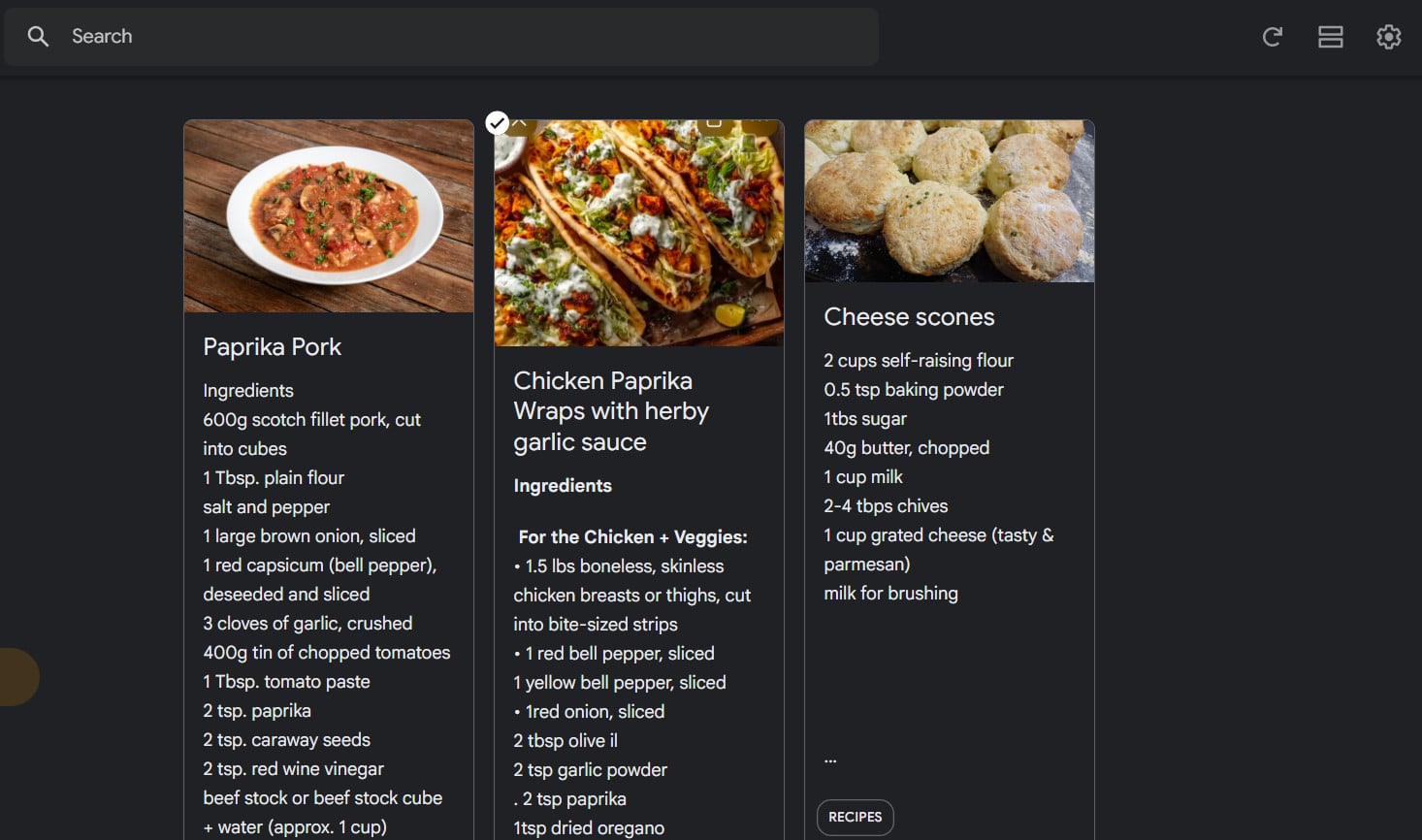
I put recipes into Google Keep for easy access, labelling them with the tag ‘recipe’ and archiving them.
To find them again, I can either browse the label or use the search function.
If I’m cooking a recipe this week and I need to reference it, then I pin it to the top of my notes alongside the shopping list, and then unpin and re-archive it once done.
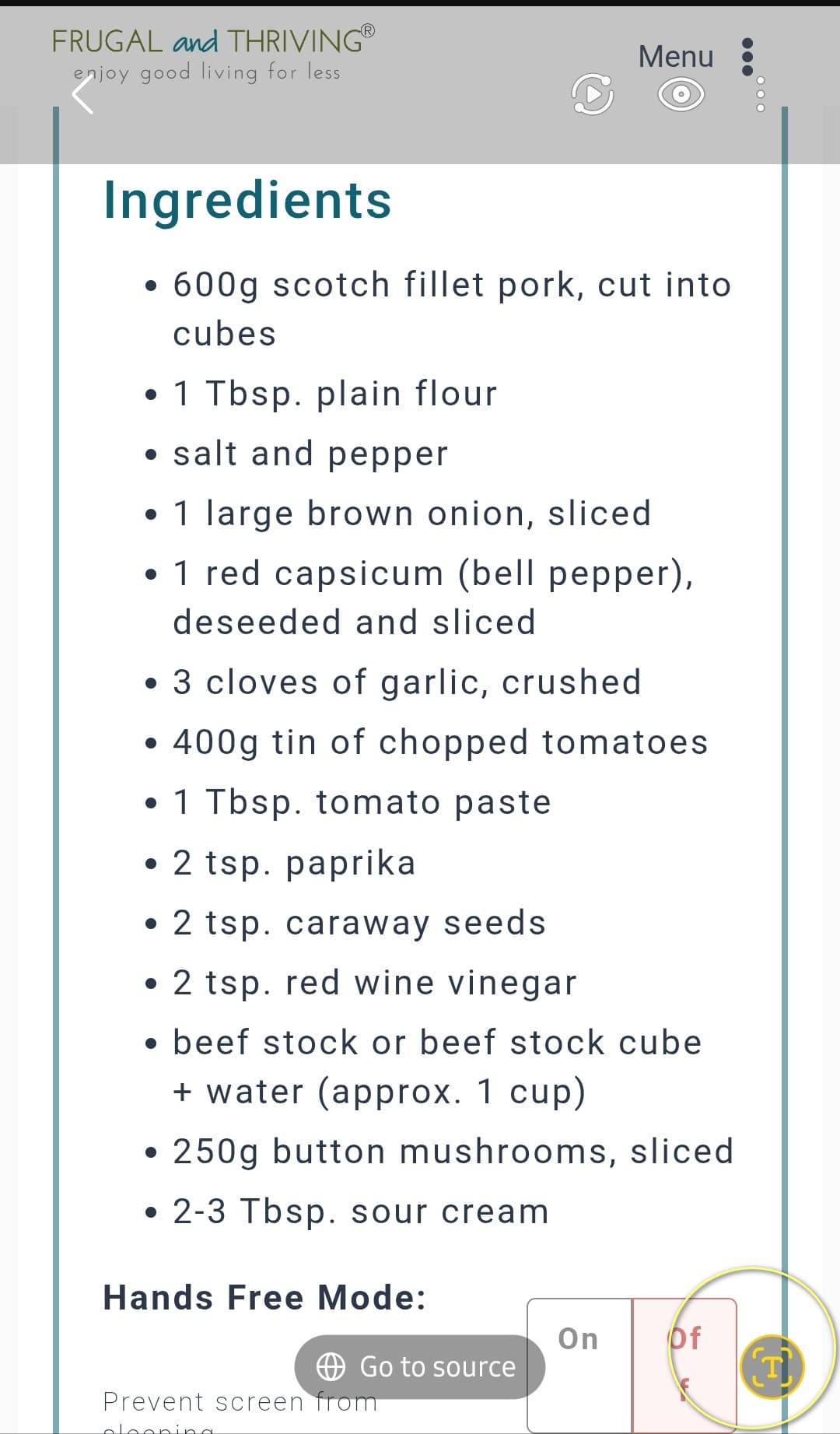
Here’s a handy trick: if you screenshot a recipe or take a photograph of a recipe out of one of your cookbooks, you can use the image-to-text function on most modern phones (see the circled icon below) to extract just the text from the image.
Once highlighted, copy and paste the text into Google Keep, add a photo of the actual dish if you like, a label, and voila, instant easy-access cookbook.
3. Pantry and Freezer Inventory
I’m a big believer in stocking up on things you need when they’re on sale. If the poo hits the proverbial, then you don’t have to panic buy – you’re already covered (logistically speaking, not in poo).
However, stocking up can be a money suck if food goes to waste. So it’s important to keep track of what you have and use-by dates.
Google Keep is how I do it.
I can keep track of what’s in the freezer and what’s hiding in the back of the pantry, as well as use-by dates.
The downside is keeping it up to date. It’s another admin task that I’m not always great at doing.
4. ‘Trip Hub’ or other Info Hub
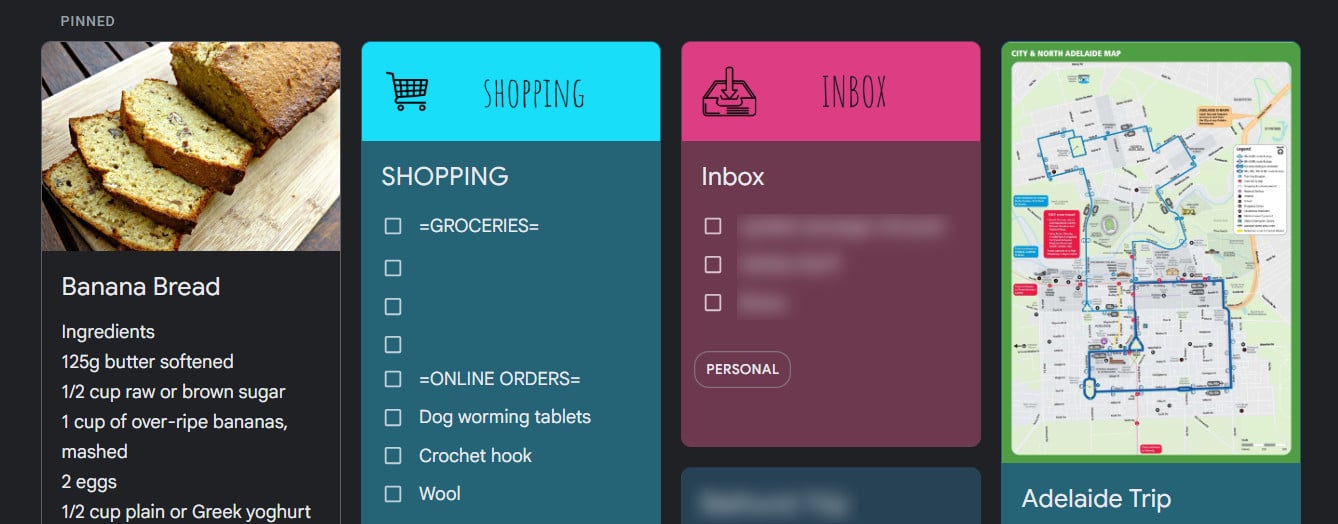
I’m going to a convention in Adelaide, and because I like to plan ahead and preempt every possible scenario so that things run smoothly on the day (some people call this worrying), I use Google Keep as a hub for all the information I’ll need for the trip.
This includes flight details, phone numbers, accommodation details, and public transport routes.
The image is Adelaide’s free public transport route instead of a travel header.
I also have a link to a Google Drive where I have the convention program, receipts, and other documents I might need.
And there are links to other relevant information, like the convention website.
A hub note isn’t just useful for travel – it can be used for planning a wedding, parties, renovations, or kids’ activities, to name a few.
5. Regularly Referenced Information
The last thing I use Google Keep for (besides quick capturing of ideas) is for regularly referenced info.
- The knitting or crochet pattern I’m working on, for example.
- The kids’ clothing sizes.
- Gift ideas
- Christmas planning
- AI prompts
- Gym workouts
Other Uses
I’ve recently started using voice notes and voice-to-text notes, but you can dictate straight into Google Keep, which is handy for capturing thoughts on the run.
Google Keep also has reminders, but I don’t find them useful. With the calendar for appointments, Todoist for household tasks, and my phone for a bazillion ‘don’t forget’ alarms, I don’t use Keep’s reminders.
I find that using one app to do ‘all the things’ doesn’t work. At least, not for me. Keep is for easily retrievable, everyday info.
Free Canva Headings – Download and Edit
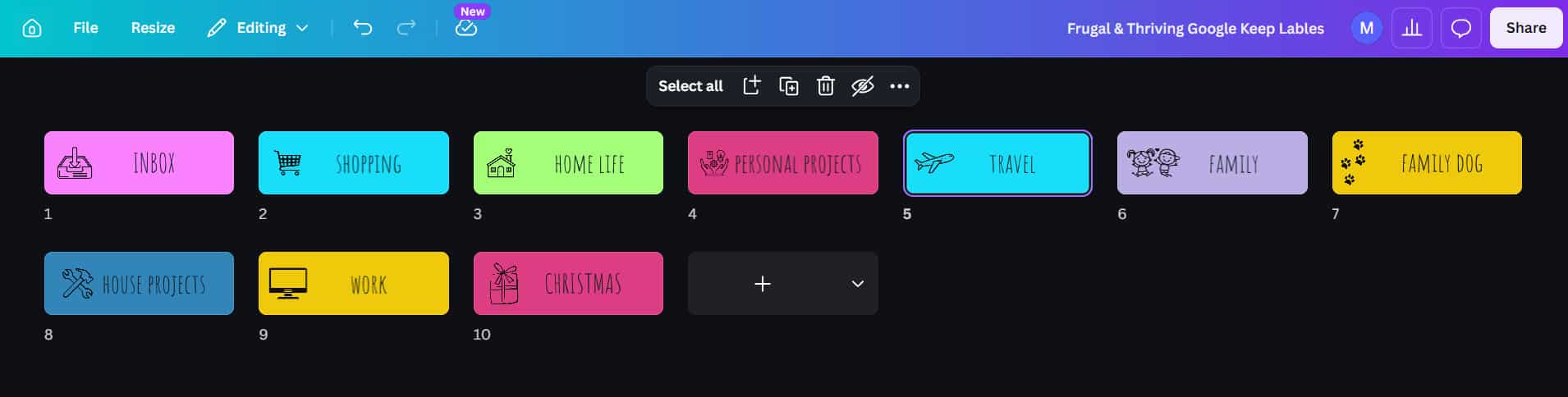
Below is a link to the Google Keep image headers I created for myself in Canva. The template is free, and you can edit the text, pictures, font, colours, etc. (use free images, etc., to keep it free).
You will need a free Canva account to edit.
Once edited, download the files as PNGs, then add to each Google Keep card using the upload image button.
Pin the cards for easy daily access.
So that’s how I use Google Keep to make life easier. Do you use Google Keep or a different note app for daily references? What’s your best tip?